
Step 1. Configuring Interface group rules:
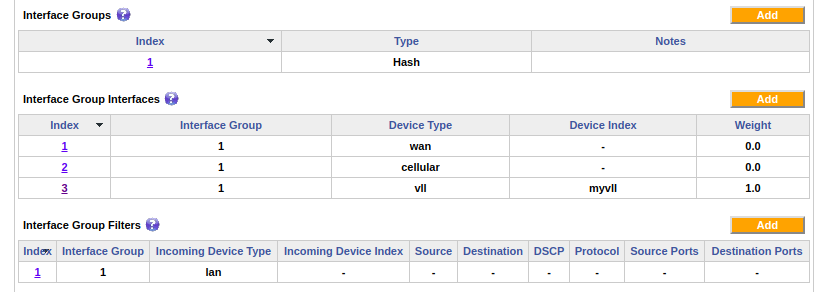
- Add a new interface group interface with the device type as VLL, and device index being the name of your VLL tunnel. In the following example you can see that as “myvll”.
- Set the “Weight” for the Interface Group with VLL Interface to 1.0 and all other weights to 0.0, as shown below.
- This will ensure that all traffic goes over the VLL tunnel. The other interfaces with a weight of 0.0 will act as fail-over options in case of the VLL tunnel going down.
Step 2: Including HTTP/HTTPS traffic in the VLL:
- Note: Even though capture all is enabled in the method mentioned above, your HTTP/HTTPS traffic will still use the direct WAN lines to go out (because of the default Mushroom’s aggregation behavior). So to capture all the traffic including HTTP/HTTPS into your VLL tunnel you need to enable HTTP aggregation exclusion as well as shown below.
-
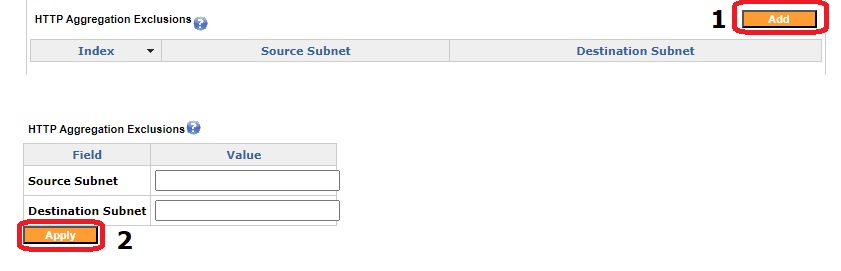
Navigate to the “Advanced” tab. Then 1) click on ‘Add’ next to ‘HTTP Aggregation Exclusions’. 2) click on ‘Apply’ leaving blank in the source and destination subnet.
-
Please read this article on HTTP aggregation exclusion for more information.
Step 3: Setting flow-pinning on the server, for internet traffic:
- Once the traffic reaches the server unit, you’d need to set flow-pinning on the VLL to ‘false’ on the server, so the internet Interface options and flow-pinning traffic would exit the box properly.
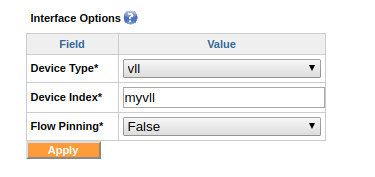
- Please read this article on Interface options and flow-pinning for more information.